
Sending a lead to Connective Mercury, step by step
A walkthrough with screenshots. Connect Zapier once, add a Send to Mercury automation, and anyone on your team can push a lead into Mercury as a person and an opportunity, straight from the lead.
When this is set up, every lead in Marketli has a Send to Mercury option. Choosing it creates the person in Connective Mercury if they are not there already, opens an opportunity, and links the two. Nothing goes to Mercury until someone chooses to send it, so only the leads worth pursuing end up in your CRM.
Setting it up takes about fifteen minutes, once. There are three parts: a key in Marketli, a Zap in Zapier, and an automation in Marketli.
Want every new lead sent automatically instead? That uses a different trigger and needs no automation. See Sending leads to Zapier.
Before you start
You need:
- To be an owner or admin of your company in Marketli.
- A Zapier account. The Zap below has three actions, and at the time of writing Zapier's free plan allows only one, so you will need a paid Zapier plan.
- Your Mercury sign-in, to connect Mercury Connect inside Zapier.
- The invite link for the Marketli app in Zapier. The app is by invitation while it is new, so ask us for the link.
1. Create an API key in Marketli
The key is what lets Zapier talk to your company's Marketli account.
- Go to Company → Integrations.
- Click New key, give it a label such as Zapier, and click Generate key.
- Copy the key straight away. It is shown once only.
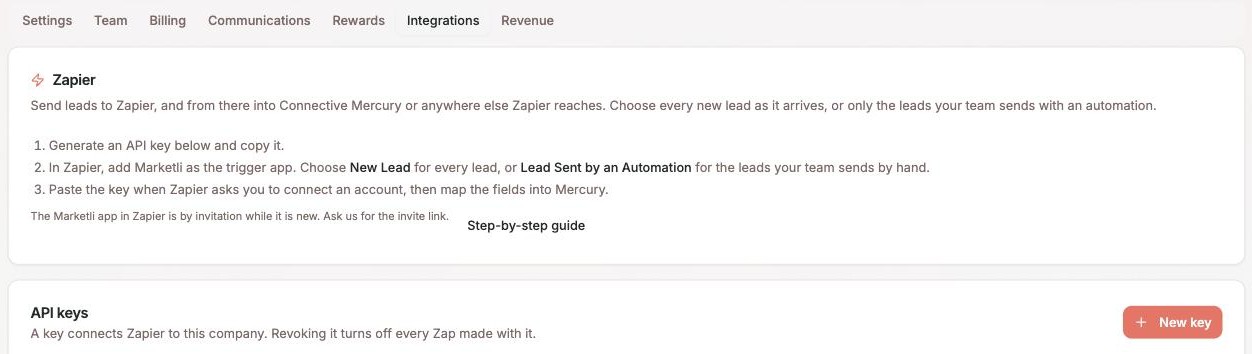
A key belongs to the company, not to you. If you ever revoke it, every Zap connected with it stops.
2. Build the Zap
In Zapier, create a new Zap. It has one trigger and three actions.
The trigger
- Choose Marketli as the trigger app.
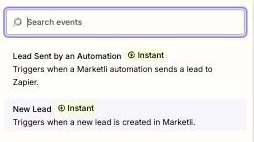
- For the trigger event, choose Lead Sent by an Automation. Do not choose New Lead here, or every enquiry will go to Mercury on its own.
- When Zapier asks you to connect an account, paste the API key from step 1.
- Leave Include notes off unless you want the enquiry message and your team's notes sent as well.
- Click Test trigger. Zapier pulls your three most recent leads to use as samples.
Action 1: find or create the person
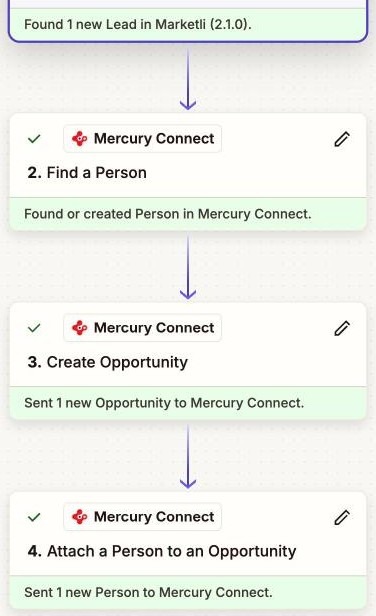
- Add an action, choose Mercury Connect, and pick Find a Person.
- Search by Email, using the lead's Email from the trigger.
- Tick Create Mercury Connect Person if it doesn't exist yet.
- Fill in the create fields from the lead: First name, Last name, Email and Phone (E.164).
Finding before creating matters. If the person is already in Mercury, they are matched instead of duplicated.
Action 2: create the opportunity
- Add another Mercury Connect action and pick Create Opportunity.
- Set the opportunity Name to the lead's Full name.
- Choose the Status and Opportunity Type you want new opportunities to start with, for example Lead and Home Loans.
Action 3: link the person to the opportunity
- Add a third Mercury Connect action and pick Attach a Person to an Opportunity.
- For the person, use the person from action 1. For the opportunity, use the opportunity from action 2.
- Choose the role, usually Applicant.
Then click Publish. The Zap now waits for Marketli to send it a lead.
3. Create the automation in Marketli
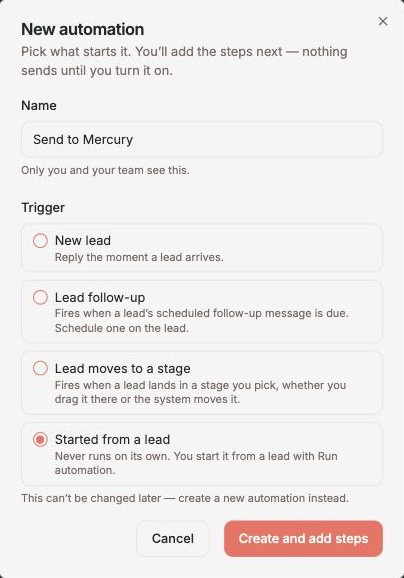
- Go to Leads → Automations and click New automation.
- Name it Send to Mercury. This is the name your team will see on every lead.
- Choose the trigger Started from a lead, then click Create and add steps.
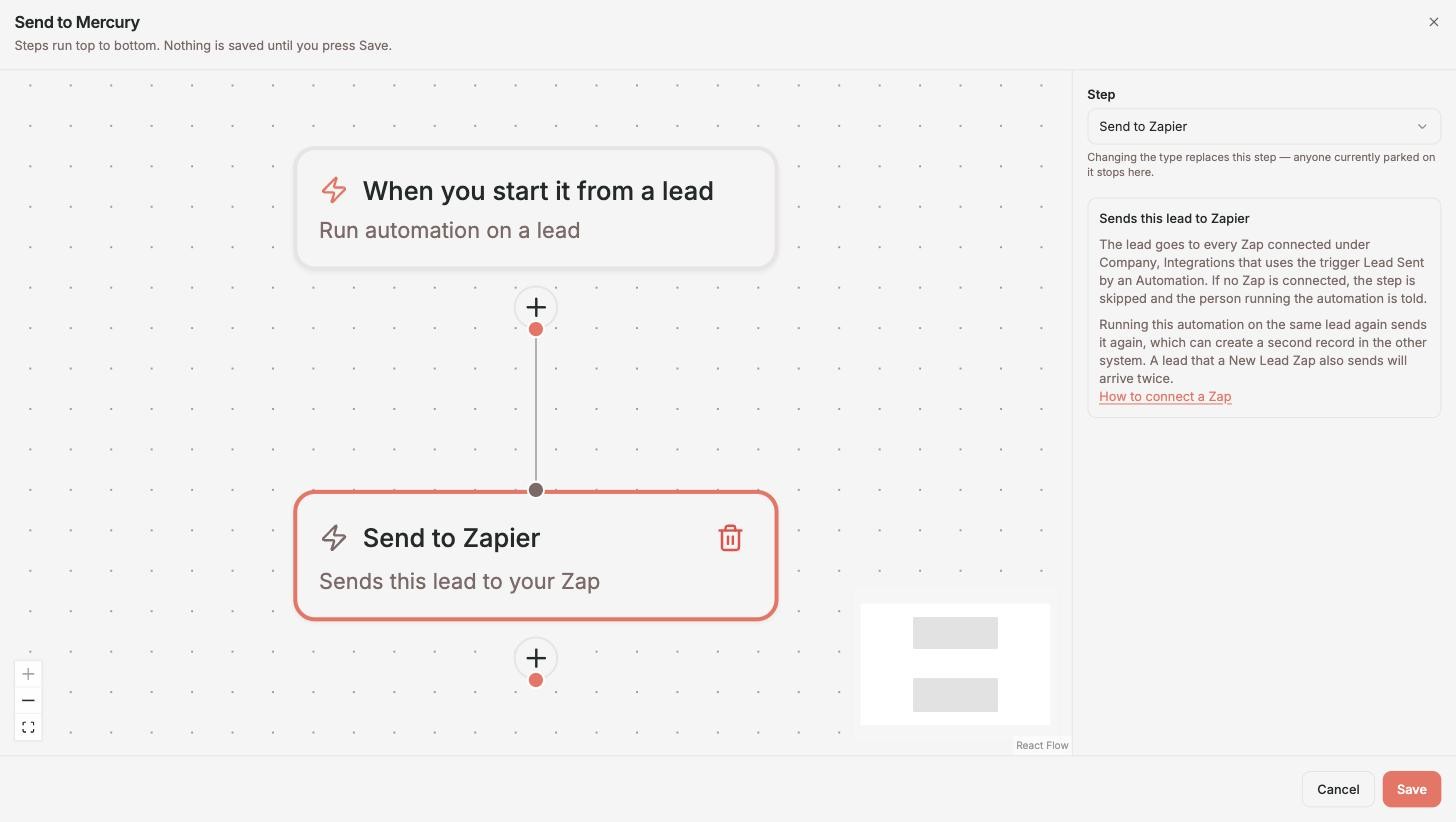
- Click the + under the trigger and choose Send to Zapier.
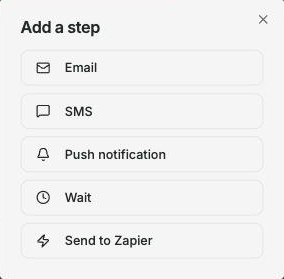
There is nothing to configure on the step. It sends the lead to every Zap of yours that uses the Lead Sent by an Automation trigger.
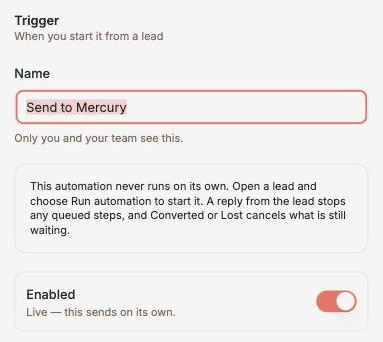
- Click the trigger at the top, switch Enabled on, and click Save.
Back on the Automations tab, check the switch beside Send to Mercury is on. An automation that is off does not appear on your leads.
4. Send a lead
- Open any lead.
- Click Run automation and choose Send to Mercury.
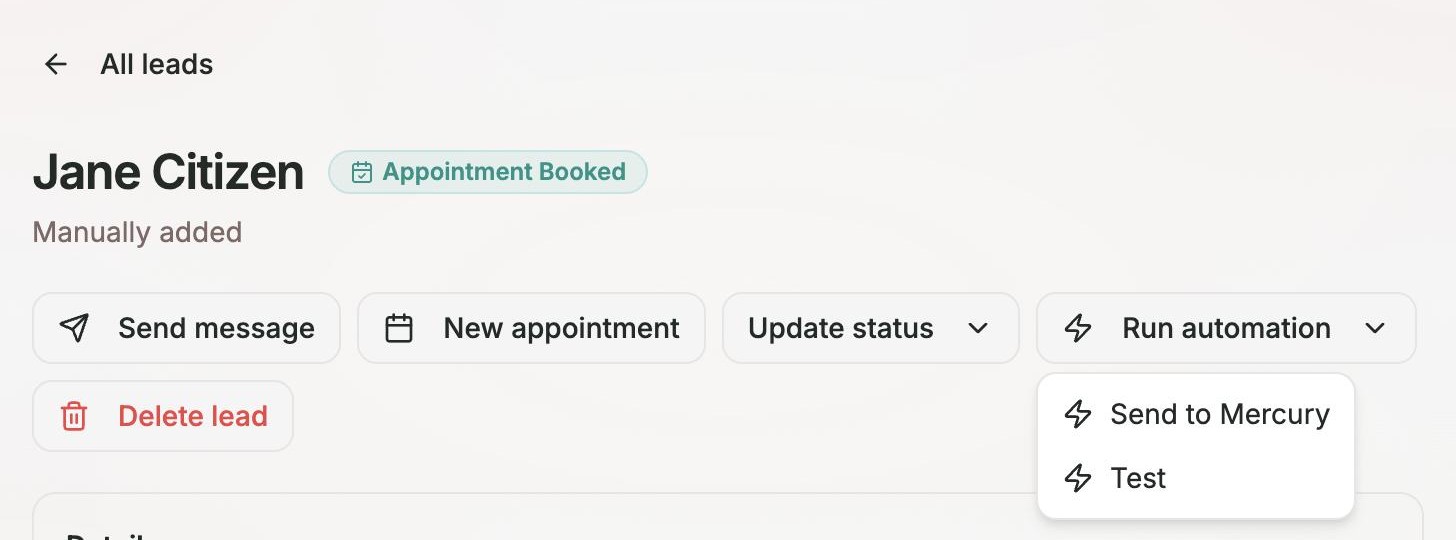
Marketli confirms with Queued for Zapier. Queued means the lead is safely in line. It usually reaches Zapier within seconds, and always within a couple of minutes. Mercury follows a few seconds later.
Anyone on your team can do this. They do not need a Zapier account or a Mercury sign-in.
5. Check it arrived
There are three places to look, in the order the lead travels.
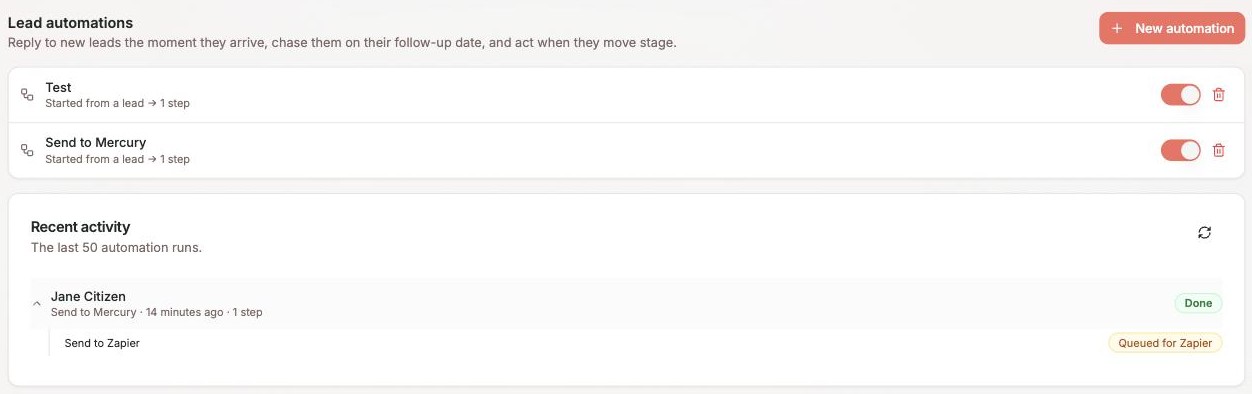
In Marketli, on Leads → Automations. Recent activity lists the run. Open it to see the step marked Queued for Zapier.
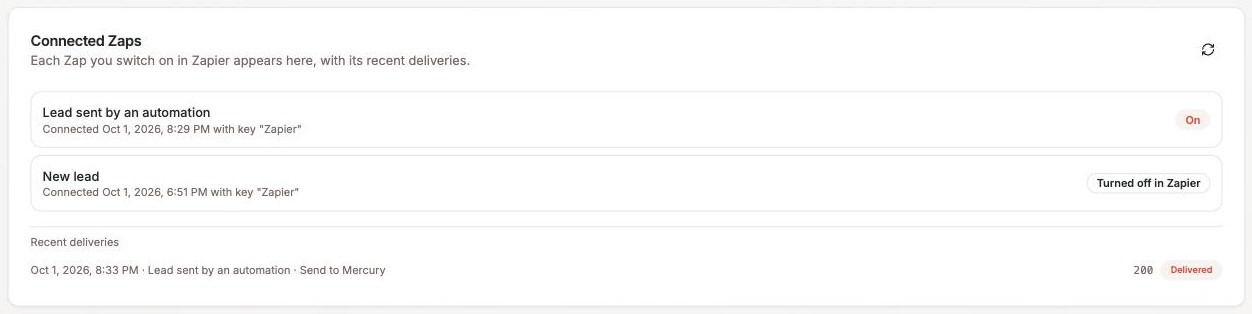
In Marketli, on Company → Integrations. Connected Zaps shows your Zap as On, and Recent deliveries shows whether Zapier accepted the lead. 200 Delivered means it did.
In Zapier, under Zap history. Each run shows every step and what it did in Mercury.
Then open Mercury. The person is there, with a new opportunity attached.
Sending the same lead twice
Running the automation again on a lead sends it again, and Mercury will usually create a second opportunity for the same person. So Marketli asks first.
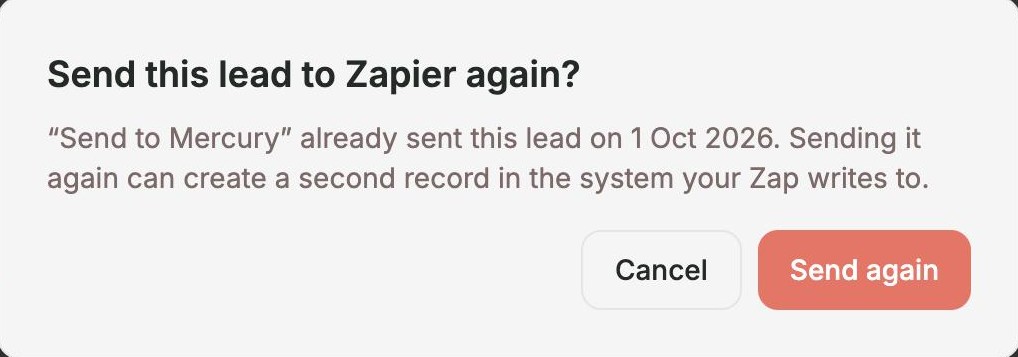
Choose Cancel unless you really do want a second opportunity, for example when a past client comes back with a new loan.
If something does not work
| What you see | What it means |
|---|---|
| No Zap is connected. Connect one in Company, Integrations. | The Zap is switched off, or it uses the New Lead trigger instead of Lead Sent by an Automation. Nothing was sent. |
| Send to Mercury is missing from Run automation | The automation is switched off. Turn it on under Leads → Automations. |
| Send to Zapier is missing from the step list | The step is only offered on automations with the trigger Started from a lead, and an automation can hold one of them. |
| The contact is archived or unavailable | The lead's contact has been archived, so it is not sent. |
| Delivered in Marketli, but nothing in Mercury | Open the run in Zapier's Zap history. The most common cause is a lead with no email address, which Mercury needs to create a person. |
| The Zap is shown as Turned off in Zapier | The Zap was switched off or deleted. Switch it back on in Zapier, and it reconnects by itself. |
For the full list of fields Marketli sends, and how deliveries are retried, see Sending leads to Zapier.
Still stuck? Email help@marketli.app.